

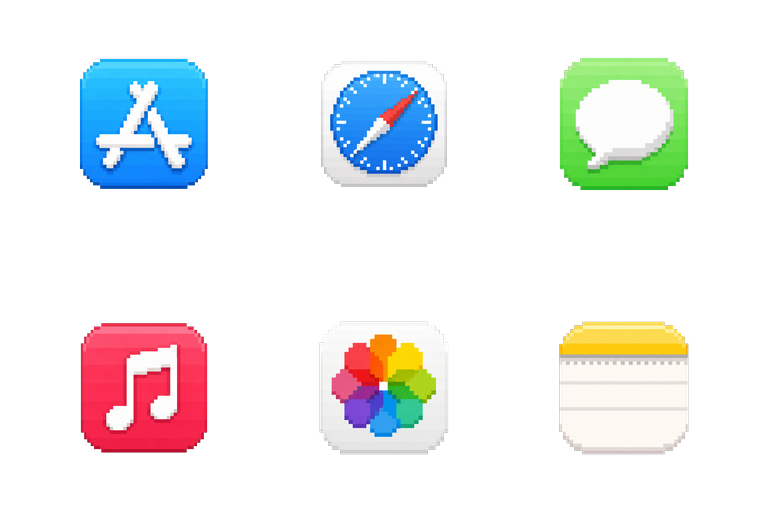
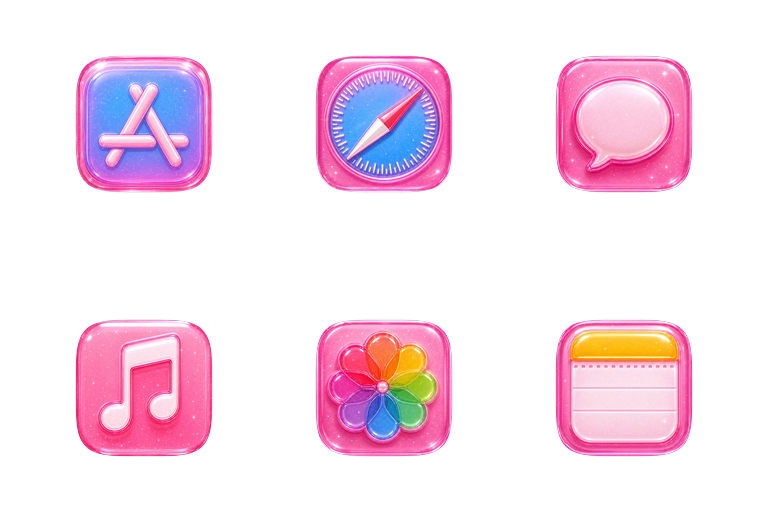
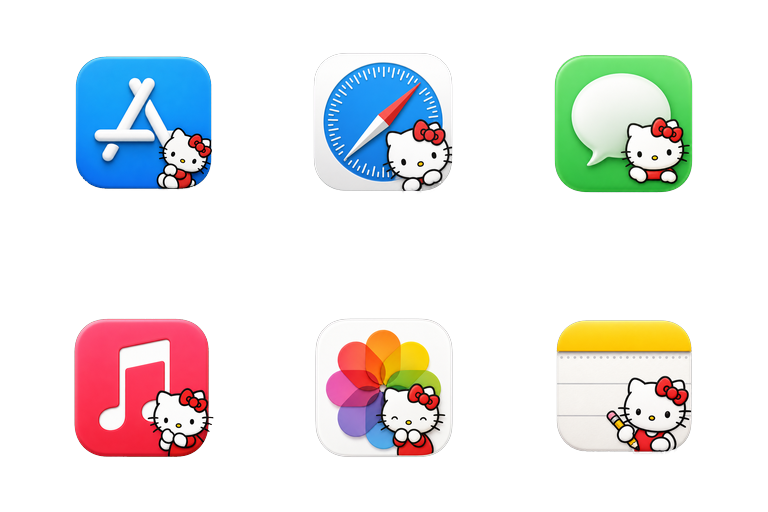
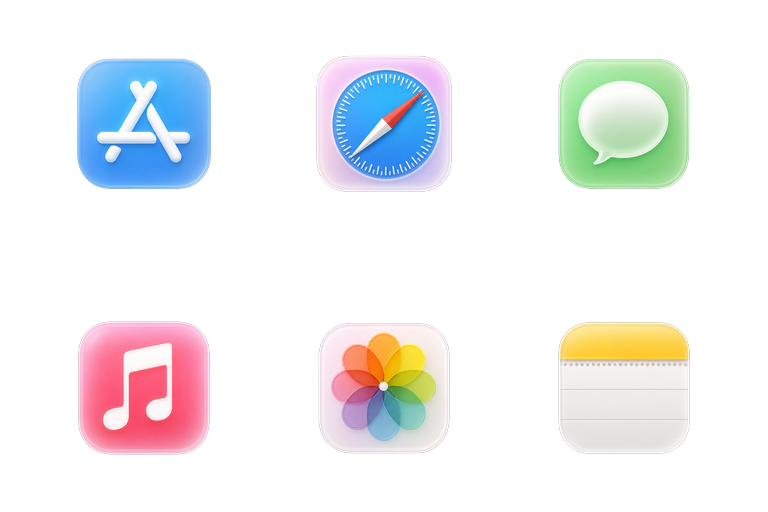
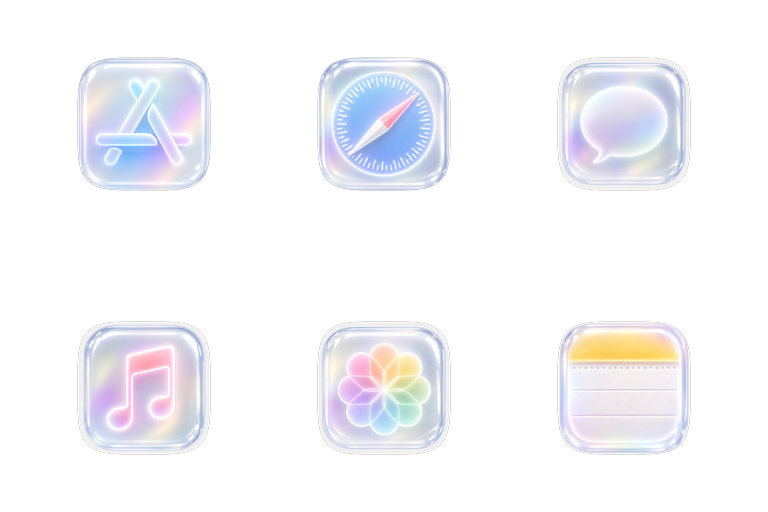
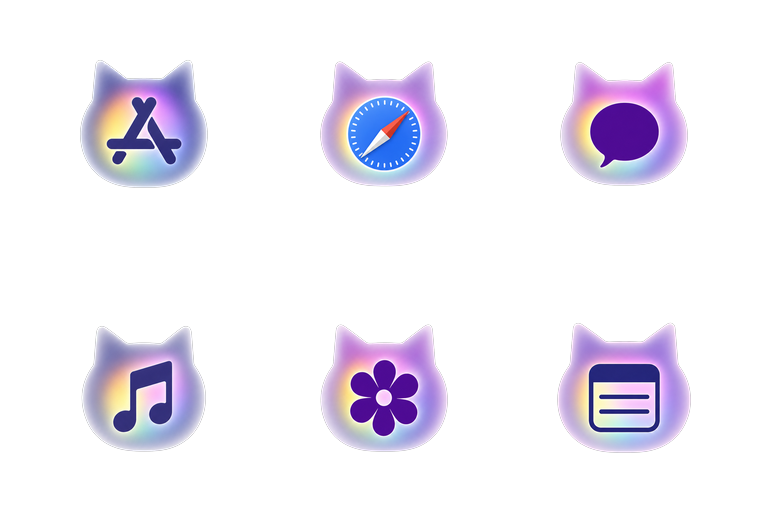
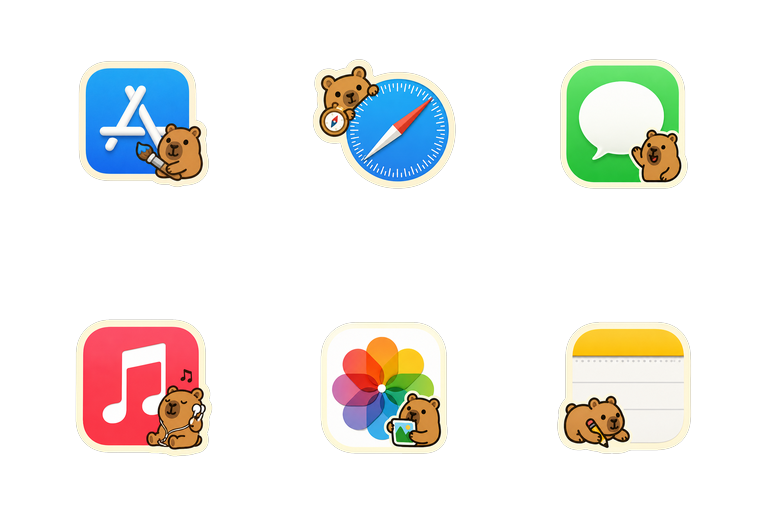
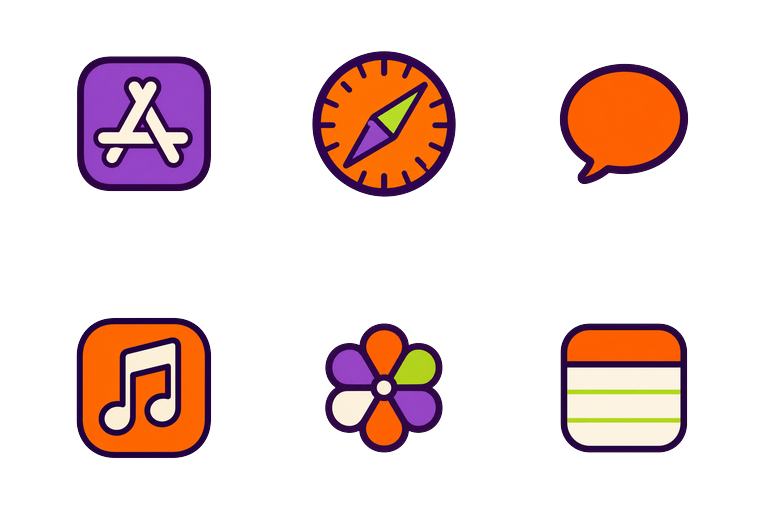

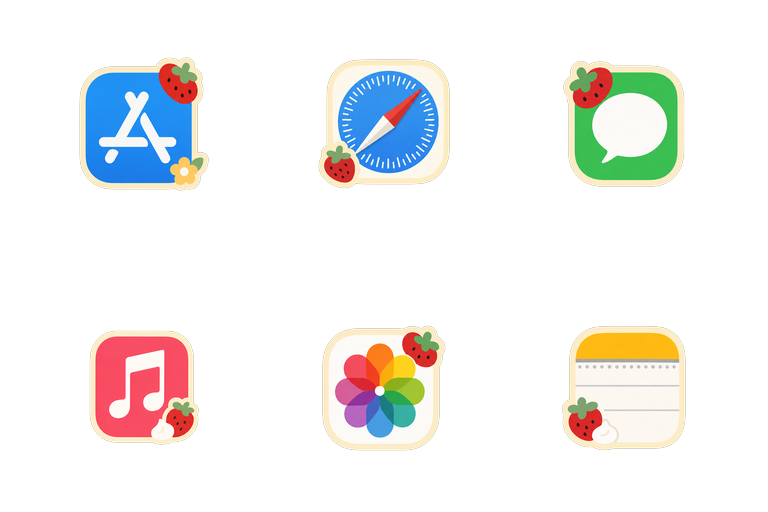
Apps and folders
Select one app or folder—or several at once—and apply an icon.
A 36-second preview of NyaIcon themes changing Mac app icons in the Dock. The soundtrack contains music only.


Real NyaIcon and Launchpad captures.
Select one app or folder—or several at once—and apply an icon.
Browse themes, search your icon library, or import an image or ICNS file.
Undo the latest change or restore an app or folder’s original icon.
NyaIcon never asks you to disable System Integrity Protection and does not modify sealed system app bundles.
Every app icon change uses NyaIcon's approved IconServices Helper. A direct change to one ordinary folder stays local; type-wide changes use the Helper. macOS may ask once for approval.
NyaIcon preserves the cache data it replaces so you can restore original icons later.
Images, ICNS files, and icon backups remain on your Mac and are not uploaded.
Choose one item or a group of items you want to customize on your Mac.
Open a theme, search your library, or import an image or ICNS file from your Mac.
Apply the icon. If you change your mind, use Undo or Restore original.
Yes. NyaIcon is currently free to use. It does not require an account, subscription, purchase, license key, or device activation.
NyaIcon changes the icon macOS displays for an app or folder. Choose a theme or import an image or ICNS file, then apply it. You can undo the latest change or restore the original icon.
NyaIcon routes every app icon change through its approved IconServices Helper, including protected Apple apps. A direct change to one ordinary folder stays local, while type-wide changes use the Helper. macOS may require a one-time approval; NyaIcon does not ask you to disable SIP or modify a sealed system app.
This NyaIcon release supports macOS Tahoe 26.
No. Icon changes are cosmetic. NyaIcon updates icon cache entries and does not rewrite protected application code or sealed system app bundles.
Yes. NyaIcon keeps recoverable cache backups. Choose Restore original to return an app or folder to the icon it had before.
No. Imported images, ICNS files, and icon backups stay on your Mac. Browsing and downloading catalog themes still requires an online request.
No. NyaIcon changes app and folder icons; it does not set or manage wallpaper. See the Mac desktop customization guide to coordinate NyaIcon icons with wallpaper chosen in macOS System Settings.
Visit Help & Support or email us. Include your macOS and NyaIcon versions with technical questions.
